20 hidden features of Samsung Galaxy S6 Edge
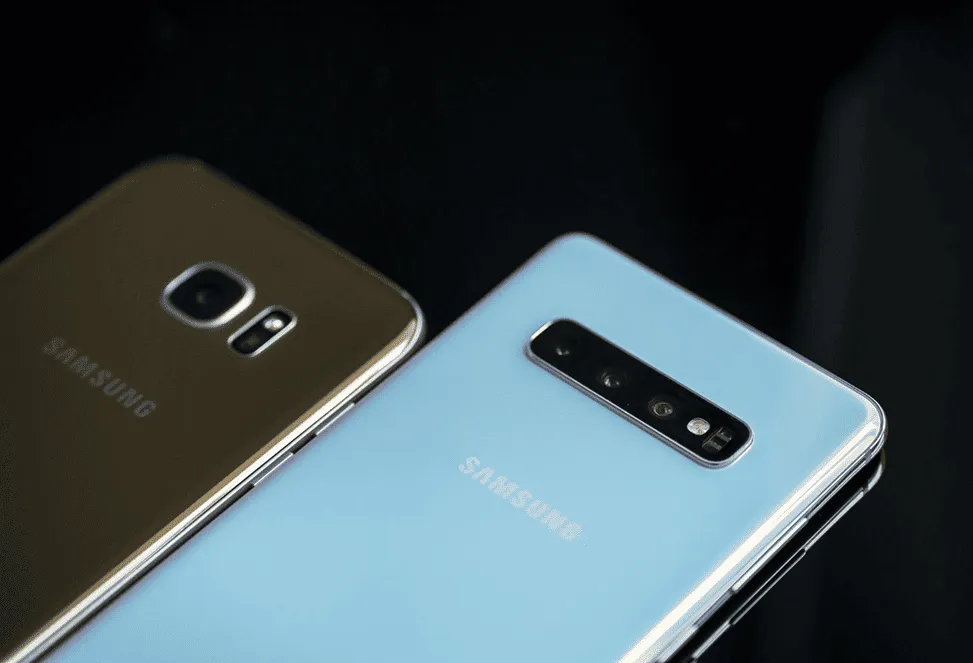
Galaxy S6 edge is certainly one of the best flagship devices launched by Samsung last year. The smartphone is not only popular for its eye-catching curved display, but it flaunts an array of advanced features that you will witness for the first time.
The smartphone boasts a plethora of astounding features that stand out, but what’s more exciting are the ones hiding under the hood of Samsung Galaxy S6 Edge.
Let’s have a roundup of 20 hidden features of Galaxy S6 Edge
1. Multitasking
Today, almost all smartphones allow you to perform multitasking, but switching between apps is a serious pain. Samsung Galaxy S6 Edge uses Multi Window technology that allows you to put any two apps on-screen without delay. To get started, simply drag any two supported apps on your Galaxy S6 screen and resize them the way that fits your needs.
2. Smart Manager
Another awesome feature that Samsung Galaxy S6 Edge boasts is the ability to view and manage its battery life. The smartphone not only helps you manage battery life but also assists in your device’s storage and security. From wiping unnecessary files to instantly shutting down apps, it allows you to do everything on one screen for maximum performance. To do so, simply set the widget on your device’s home screen and tap the icon you desire.
3. Charge Wirelessly
Even after employing Smart Manager, you still need to charge your smartphone. The Samsung Galaxy S6 Edge offers faster charging of up to 4 hours in just 10 minutes. If you are on the go, you can also charge your smartphone wirelessly using a charging pad.
4.Enhance Your Download Speed
The Galaxy S6 Edge offers faster downloads. You can download large files (over 30 MB) faster by blending both LTE and Wi-Fi networks at once. To do so, navigate to Settings > Wireless and Networks > More > Download Booster.
Note: This feature may consume a large amount of your mobile data, so use it carefully.
5. Create Keyboard Shortcuts
Another useful feature hosted by the Galaxy S6 Edge is the ability to create keyboard shortcuts for quickly managing your text.
To do so, navigate to Settings > Language and Input > Samsung Keyboard > Text Shortcuts.
Here you can create shortcuts for your text. For example, typing “NG” can automatically expand to “NextGeekers”.
6. Improve Headphone Sound Quality
Did you know that the sound quality of the Galaxy S6 and S6 Edge can be enhanced while using headphones? To do so, go to Settings > Sound and Notification > Sound Quality and Effects and tap on Adapt Sound. Then toggle the SoundAlive+ and Tube Amp buttons ON.
7. Disable Pre-Installed Apps
Samsung smartphones come preloaded with dozens of apps made by Google, Amazon, and Samsung itself. Luckily, you can disable these apps if you don’t need them by navigating to the app drawer and tapping the Edit button. By tapping the minus icon on the apps, you can disable any app.
Preinstalled apps on Samsung Galaxy S6 Edge can also be disabled by navigating to the Applications Manager. Before disabling any built-in app, make sure you no longer need it, as disabling certain apps may cause errors in other applications.
8. Get Live Weather Reports on the Lock Screen
Your Galaxy S6 Edge can display live weather reports even when your smartphone is locked. To enable this feature, go to Settings > Lock Screen and Security > Show Information > Weather.
Bonus Tip: Make sure your location settings are ON and your locating mode is set to high accuracy for the best experience.
9. Review Images Instantly
The Samsung Galaxy S6 Edge allows users to review images instantly after capturing them. Rather than opening the gallery every time, you can preview the clicked image immediately.
To enable this feature, go to the Settings section in the Camera app and turn the Review Pictures option ON.
10. Quickly Launch the Camera
One of the most-liked features in the Galaxy S6 Edge is “Quick Launch.” It allows you to quickly open the camera by double-pressing the Home button.
To activate this feature, open the Camera app, tap Settings, and turn the Quick Launch option ON.
11. Use Easy Mode
This feature simplifies the smartphone experience for beginners and also helps save battery life. Easy Mode offers a simpler home screen layout and larger fonts.
To activate Easy Mode, go to Settings > Personal Section > Easy Mode.
12. Capture Screenshots
Capturing a screenshot on the Galaxy S6 Edge is simple. Press the Power and Home buttons together to take a screenshot.
You can also use the Palm Swipe feature. Activate it by going to Settings > Motion and Gestures > Palm Swipe to Capture.
13. Use Ultra Power Saving Mode
Ultra Power Saving Mode helps conserve battery life by turning off location services, changing the display to grayscale, and restricting the smartphone to essential applications only. Connectivity features like Bluetooth and Wi-Fi are also disabled.
To activate it, go to Settings > Battery > Power Saving Mode.
14. Wide Selfies
The Wide Selfie feature allows you to move your smartphone from left to right while using the front camera to capture a wider selfie image.
To activate the feature, tap on the Mode button while using the front camera and select Wide Selfie.
15. Send Quick Replies
If you are busy and unable to answer a call, you can send a quick reply message to let the caller know.
To activate the feature, navigate to Settings > Edge Screen > Lighting > Quick Reply and enter your desired message.
When a call comes in, simply place your finger on the heart rate sensor for a moment and the predefined message will automatically be sent.
16. Find Anything Quickly with S Finder
As your Galaxy S6 Edge fills up with content, finding specific files or settings can become difficult. S Finder helps you quickly search through files, contacts, apps, and settings.
To use it, tap S Finder from the notification panel and type your search query.
17. Use Edge Clock
Edge Clock is a handy feature that lets you check the time without turning on your smartphone.
It also includes a Night Clock feature, which displays the time during selected nighttime hours.
To activate it, go to Settings > Edge Screen > Night Clock and select your preferred time schedule.
18. Edge Notifications
Unlike many smartphones, the Samsung Galaxy S6 Edge displays notifications on the curved sides of the screen instead of only the main display.
This makes it easier to check important alerts without fully opening your phone.
19. Set Up Fingerprint Security
The fingerprint sensor in the Galaxy S6 Edge is significantly improved compared to earlier Samsung devices. Instead of swiping, users only need to lightly press the sensor.
To set up fingerprints, navigate to Settings > Lock Screen and Security > Fingerprints.
You can add up to four fingerprints for quick and secure access to your device.
20. Use the IR Sensor as a Smart Remote
The Samsung Galaxy S6 Edge also features an IR sensor that allows your smartphone to function as a smart remote control for HDTVs and entertainment systems.
By pairing the sensor with compatible devices, you can control various electronics directly from your smartphone.
Conclusion
Thank you for reading this article. We hope you found it informative and helpful. Stay tuned for more insights and updates on How To.
