Apple has completely revamped its custom messaging service on iOS 10 with apps, stickers, and many other crazy features. The little chat bubble is now a lot more than just a texting app. Now, it has its own app store from where you can install apps. Naturally, new features come with many confusions and not all the settings are immediately understandable. Keeping this fact in mind, we’ve tinkered with the new Messages feature in iOS 10 to tell you how to make the most out of it. Here’s a closer look at how to use iOS 10 new Messages feature.
Complete guide to using new Messages feature in iOS 10
1. Bubble Effects

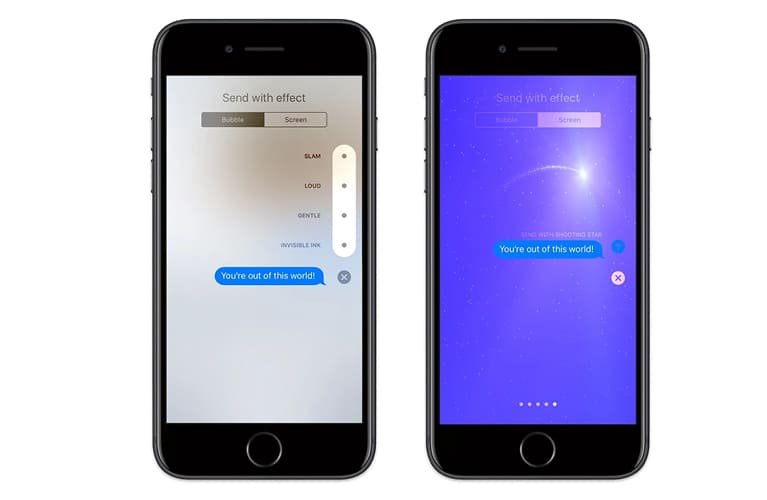
Bubble effects add a bit of emotion to Messages on iOS 10. You can add effects to your iMessage conversations as animated message bubbles as well as full animated screens. To use Bubble effects, type your message and then long-press on the arrow next to your message. You will see a list of bubble effects from which you can choose anyone to add to your iMessage conversation:
- Slam: Slams the message bubble onto the screen
- Invisible Ink: Recipient has to swipe on the bubble to reveal the message
- Gentle: Your message first starts off almost too small to read and then grows to regular size
- Loud: Message body first starts off huge, shakes a bit, and then shrinks back to regular size
In order to preview and select a Bubble effect, slide your finger across. Alternatively, you can hit the circular button next to each effect. Once you find the effect you want to use, merely tap on the Send button. You can use the Bubble effects on text as well as photo messages.
When the person at the receiving end opens your message, the animation will play and continue to play until another message is sent.
2. Screen Effects
Screen Effects are more immersive and plants life to your iMessage conversations. In simple words, these are the animations that basically cover the entire screen of recipient and sender for a few moments after the message is received or sent respectively.
To use Screen effects, just type a message and use long-press or force touch on the Send button till the Bubble screen is activated. Now, tap on the Screen button at the top of the screen to view full-screen animations. At present, there are seven screen effects featured within the Messages on iOS 10:
- Love: A big heart-shaped balloon fills up and floats to the top of the screen
- Celebration: Shoots sparklers across your screen
- Confetti: A flare of confetti will fall from the top of the screen
- Shooting Star: Probably the most interesting effect, a single shooting star flies across the screen
- Fireworks: A blast of colorful firework takes over the screen
- Lasers: Disco lasers scan up and down, arising from behind the text bubble
You can switch between effects by merely swiping across the screen. Screen Effects are randomly activated as per your message’s text.
3. Words become emojis
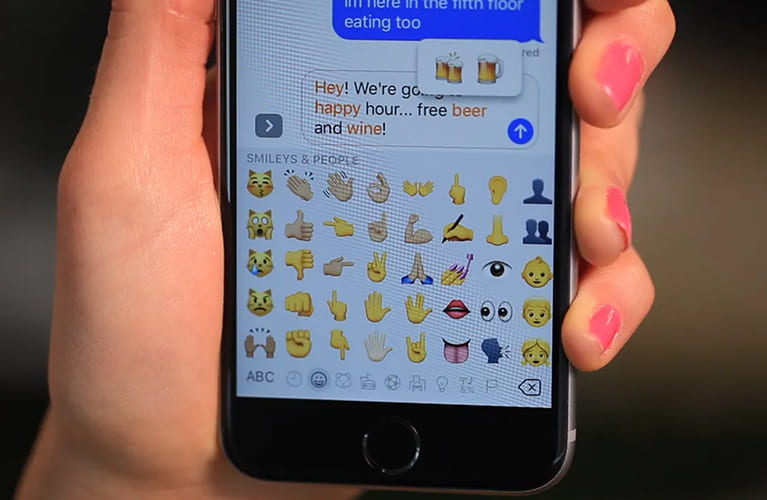
Emojis add an additional layer to the way we interact with our friends and family via text messages. Sensing this fact, Apple has paid a great attention towards this feature in its iMessage app. It has tripled the size of emojis displayed in a conversation. However, the coolest feature in Apple iOS 10 is that it instantly transforms text into an emoji.
For instance, if you type ‘Basketball’ in your message, it will turn into a basketball emoji. Cool, isn’t it? You will also get the text suggestions for words that have an emoji equivalent.
Alternatively, you can tap on the emoji button on your keyboard after writing a message. Your iOS device analyzes your text and highlights words that have their matching emoji. Just tap on the highlighted word to turn it into an emoji.
4. Sticker packs and apps
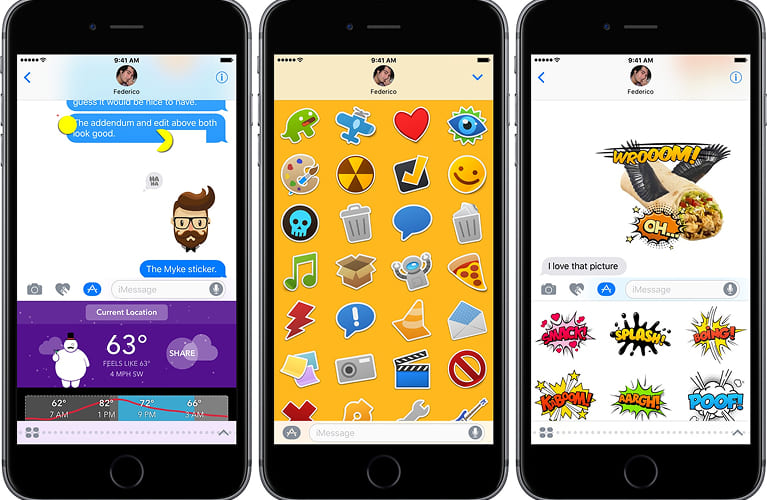
With iMessages in iOS 10, you can now do things like book lunch reservations and send money through Square Cash app while communicating with your friends. Additional goodies such as emojis and sticker packs can also be downloaded.
There is a built-in app store within the iMessage app from where you can download apps. In order to download apps and sticker packs, tap on the ‘>’ button and then hit the App Store icon. From here, you can choose from your most recently used apps and stickers to download.
Apple iOS 10 even includes an Apple Music and Images app by default. The Apple Music app allows you to quickly share songs and albums with your buddies, whereas the Images app searches Bing for GIFs.
This new Massages feature in iOS 10 allows you to send a sticker in an individual message or you can drag and drop a sticker over a photo or text box of a previously sent message.
Tapping on the four app icons in the bottom-left corner will display icons of installed apps. Also, you’ll see a button that opens the iMessage’s inbuilt app store.
5. Send a handwritten note
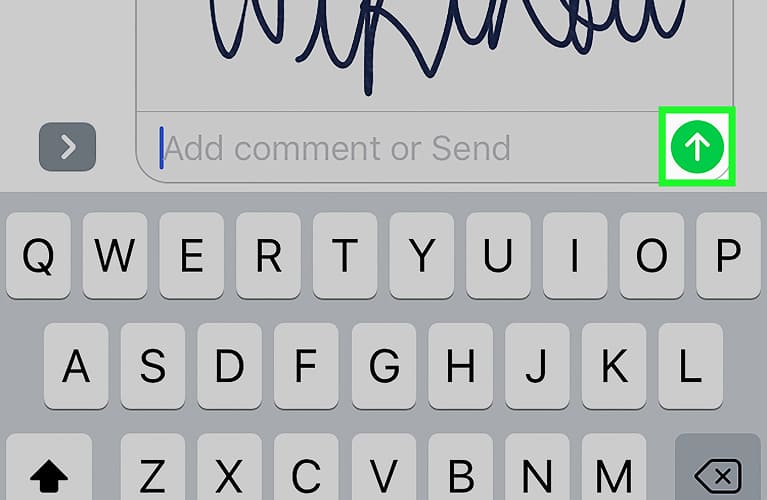
The new Messages feature in iOS 10 gives you the ability to send handwritten notes to your friends. To use this feature, open iMessage app on your iOS 10 device and turn your phone to landscape orientation. Now, tap on the squiggly button in the bottom-right corner and write your message with your finger. Hit the Send button to send your handwritten note.
6. Better read receipt controls

iMessage app for iOS 10 comes with better read receipt controls. Formerly, read receipt setting was either on or off for everyone. Now, you can turn read receipts on or off for specific contacts.
You can find the default setting in Settings > Messages > Send Read Receipts. To change the setting for an individual contact, open the conversation thread and then tap on ‘i’ button and toggle Send Read Receipts switch to the right.
7. Camera Shortcuts
You can even create camera shortcuts in the new Messages feature in iOS 10. If you want to send a photo, tap on the ‘>’ button next to the text field and then hit the camera icon. You will have a preview thumbnail of your camera, letting you tap on a photo and send it to your friends.
8. Draw on photos
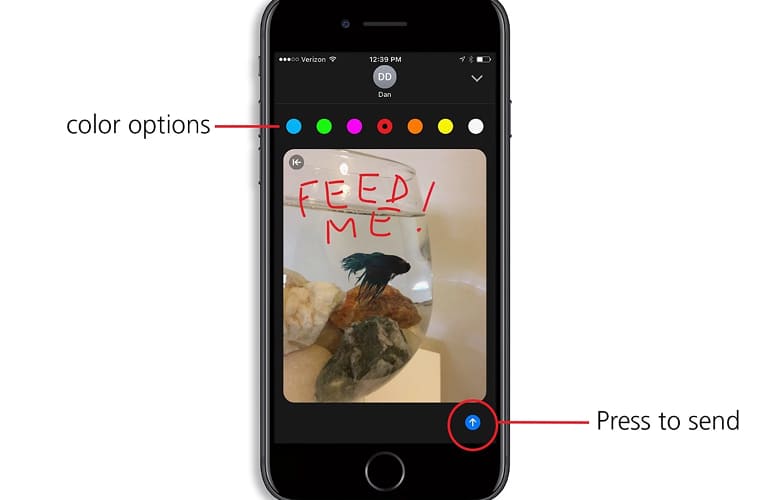
Apple has added a drawing tool in its new Messages feature in iOS 10. So after adding a photo to your message and before sending it, you can use the Markup tool to draw something on it.
In order to draw something on your photos, tap on the Markup button in the lower-left corner. Now, you can highlight, write, and draw on your image. Remember one thing that anything you do here will not get saved to the image in your Gallery app.